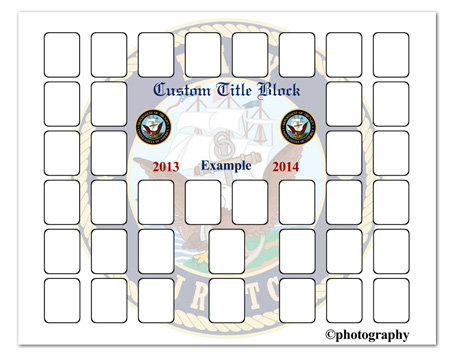

Click here for a PDF of the template margins for our large and small pocketed envelopes.
There are several possible reasons why the ROES Client will not start up, or in some cases not transmit to the lab. We have found it is best to go through these steps in order and always end with cleaning out Temporary Internet Files:
Launch Failures
After installation and even some use, the ROES Client may fail to launch. If you have run ROES on the system before, then it's possible a saved setting is the issue and cleaning up to start fresh is the best bet. First, open an Explorer window (click Start and Computer) and choose C: drive, then Users and go into your user account folder. Find the .roescache folder and permanently delete it (this may take some time), then see if ROES launches. If it still fails, in the same user login folder look for the folder starting with a period that applies to your ROES (.UPIVolume/.UPISports). In that folder will be a file of the same name as the folder ending in .properties. Delete this .properties file, which stores old/saved preferences, and then try the launch again.
Order Completion Failures
The ROES Client may fail to complete your order for reasons usually involving the image files used. First, be sure that all images used in the order have not been moved (such as removing a CD or USB drive) or renamed since being added to the order in ROES. The files are not physically added into the order for the lab until you finish the order completion steps prior to transmission. Second, beware of using any characters or punctuation in the file names you use. Parentheses, apostrophes, quotes, copyright signs and other hotkey characters should be avoided at all times.
Order Transmission Failure
The most current send issue is with FTP and Java 7 or higher. Java changed their FTP calls in version 7, and in Windows, due to a bug in the operating system (specifically Windows Firewall), FTP fails immediately. Many labs have changed to a new transmission method ROES offers, however most are still using the usually reliable FTP. You can try the following steps if the Uploads pane shows the failure immediately.
Turn off the problem issue in Windows Firewall, which can be done via the following steps:
Click Start in Win 7/Vista, then choose All Programs, Accessories, and right-click on Command Prompt.
Choose Run as Administrator in the list and the black command window will open. At the prompt type:
netsh advfirewall set global StatefulFTP disable
and press Enter. An 'OK' should appear below it and bounce back to a prompt. Then type
exit
and press Enter to formally quit the window. After that ROES orders should send OK via FTP. The command simply turns off a check in Windows Firewall that is causing the issue.
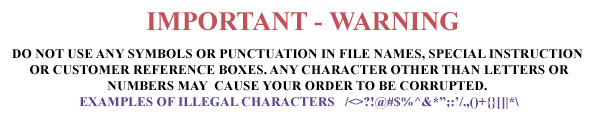
1) Verify the file has no illegal characters like a backslash in it from the My Information screen's Account field, where N\A may be entered. Go back to the My Information screen and replace N\A with just NA, None, or NewUser.
2) Verify the files are actually on your machine. The images cannot be located on DropBox, Box, iCloud, OneDrive or any other cloud service. ROES will pack the order up before sending and it will cause a slew of errors when unpacking if it did not get the whole file. Copy or Move the files to your local drive before ordering thru ROES and you should be able to avoid this.
3) Zip file corruption can occur in rare instances. Go back into the order and look line by line through the cart. You will notice a product ordered line with no thumbnail, horizontal thumbnail with a vertical image in it or by it or a package ordered with a quantity of 0. The way to clear this last error is the clear the cart and start over.
~/.roescache
Press Enter and the folder's contents will appear in a Finder window. You can select all and delete the contents to clear it if needed. You can also access the '.labname' folder the same way. Each ROES Client launch will have its own '.labname' folder (.UPI & .UPISport) for storage of preferences, old orders, auto-saved orders, packages, customer data and saved Pager templates.
Standard
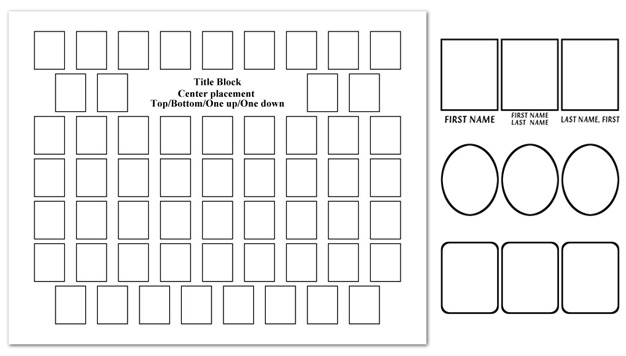
- Basic image layout on standard size background. (solid color or approved image)
- Basic text block placement. (see example)
- Above shown frame and data listing options. (any color)
Custom
- Everything a standard composite offers plus more!
- A wide range of color/fonts and backgrounds!
- Larger title block placed anywhere!
- Ability to include logos!
- Placement of your company info!